 LogQuill
Plan time
Set aside time on an issue for the days ahead, and compare it with what you actually log.
Who: everyone whose role tracks time. You can only plan, change or delete your own time.
A plan says how much time you expect to spend on an issue, on which days. It sits next to your logged time on the Time Tracking page and in reports, so you can compare the two.
In Jira, plans first fill the issue's original estimate. Only the time planned beyond it, by everyone together, is added to the remaining estimate. On an issue estimated at 1d (8h), a plan of 6h changes nothing; a second plan of 6h takes the plans 4h past the estimate, so the remaining estimate becomes 1d 4h. An issue with no estimate gets every planned hour on its remaining estimate, and its original estimate is left empty.
Shortening or deleting a plan gives back only what it had added, never going under the original estimate. Moving a plan to another issue does both: it counts there, and the issue it leaves gives back what it had added. If someone estimates the issue again, plans are measured against the new estimate from then on. The Plan time dialog shows what saving will do to the estimate.
Plan time
On the Time Tracking page, open Time actions, then Plan time. Or select days in the table, then Plan time.
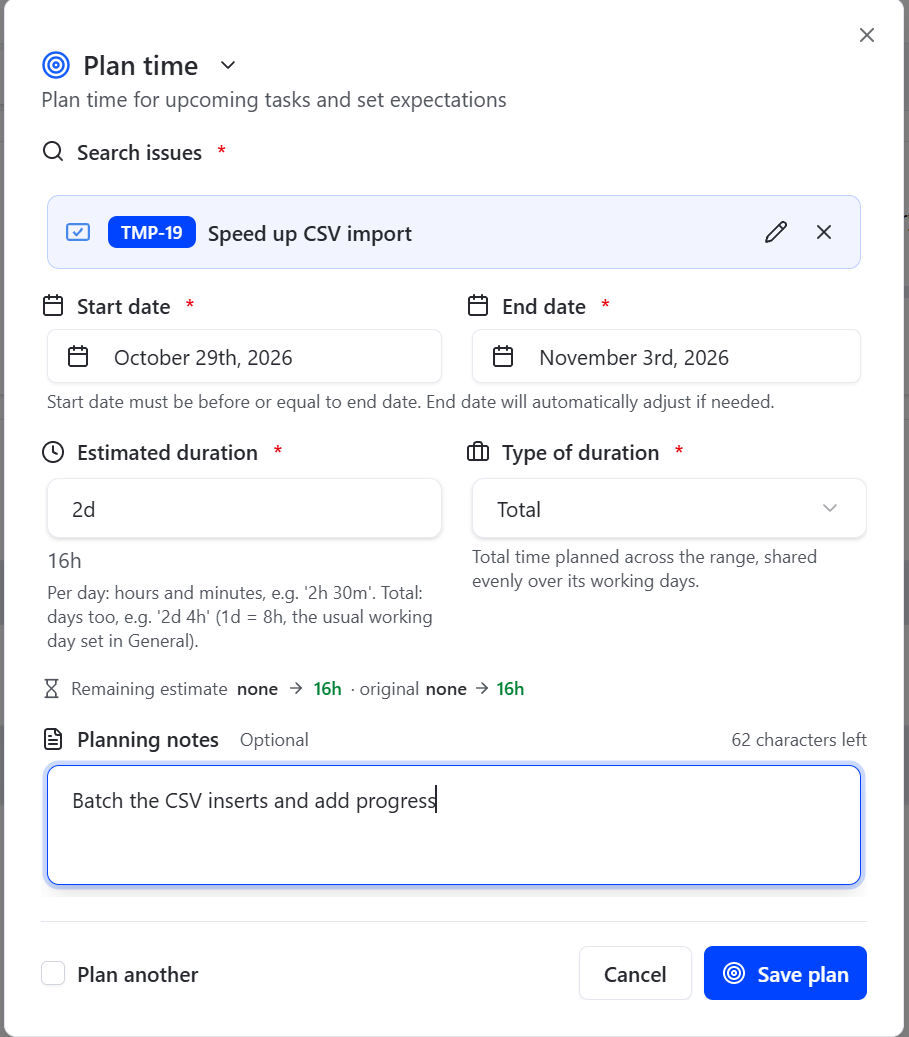
Pick the issue, and the Start date and End date. Each date's calendar shows the whole range, and moving the start past the end moves the end with it.
Enter the estimated duration, and, for a range of several days, how to read it:
- Per day: this much on each working day of the range, in hours and minutes (
2h 30m). - Total: this much over the whole range, shared evenly between its working days. Days can be
used here:
2d 4h, where a day is your site's usual working day (shown under the field).
For a single day there's nothing to choose: the duration is that day's total.
A range is planned on its working days only: days with no working hours (a weekend) and your
holidays are skipped. Thursday to Tuesday at 2h a day makes four plans, not six. A single day
you pick on its own is planned whatever day it is.
Add Planning notes if you like, then Save plan, or Plan another.
Limits
- Your site may limit a day's planned time to its working hours. The dialog shows how much is left on the busiest day of the range. Days with no working hours (weekends, holidays) then take no plans.
- A day has 24 hours at most, for plans as for worklogs.
- Plans in a submitted or approved timesheet follow the same locks as worklogs, as your site sets them.
Change or delete a plan
Click it in the table or on the week board, then edit or delete it. A plan that covers several days is changed from its dialog, not by dragging.
Log a plan's time
When you've worked as planned, log it from the plan:
- In the table: click the day, then the clock button on the plan's row.
- On the week board: right-click the plan's card, or click its … button, and pick Log this planned time.
- On a Jira issue: the clock button on the plan's row in the LogQuill worklogs panel.
Log time opens with the plan's day, hours, issue and description filled in. Change anything before you log it. The plan stays: it is what you meant to do, and the worklog is what you did, so reports can compare the two.
The plan then shows how much of it you've logged, for example 2h logged under its hours, and the button offers only the rest: Log the other 2h. Once all of it is logged, the plan shows a green check instead, and the button goes away. You can still log more time on that day and issue with Log time, as usual.
If you delete the plan, its worklogs stay. Changing a plan that covers several days into separate days starts its count again.