 LogQuill
People and roles
Give people roles, decide what each role allows, and create roles of your own.
Who: people with Manage roles (administrators).
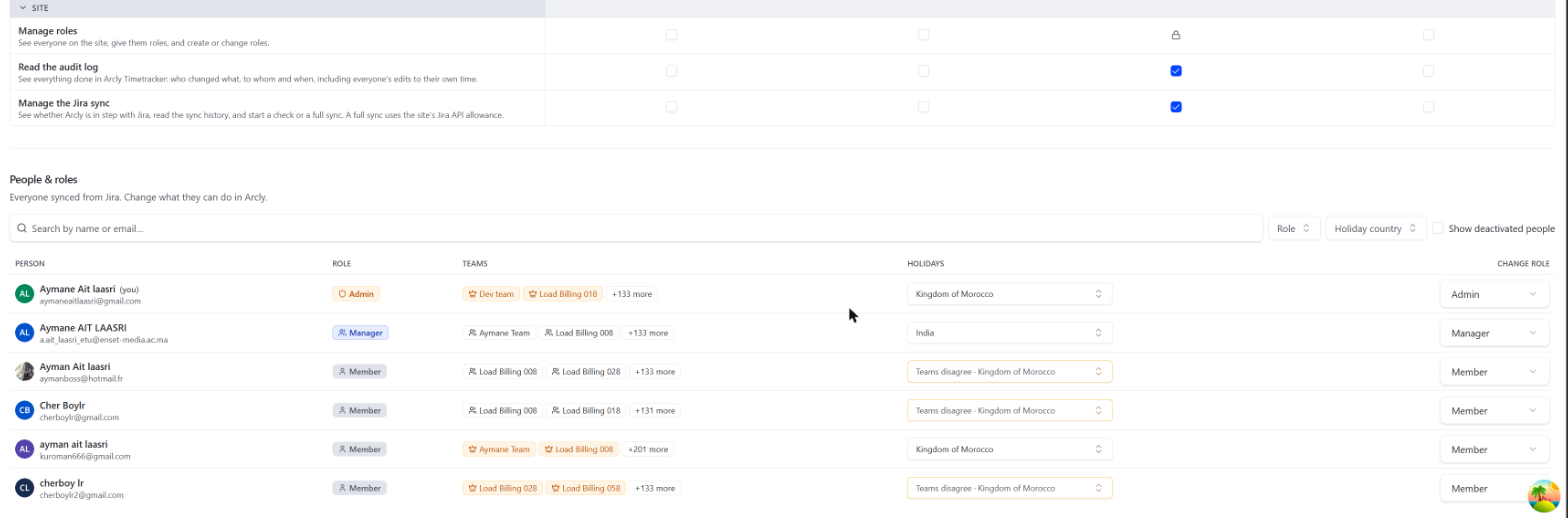
Open Admin, then People & roles. Everyone on your Jira site is listed, brought in by the Jira sync.
Give someone a role
People & roles has two tabs: People, everyone on the site, and Roles, what each role allows (see What a role can allow).
On People, find the person (search by name or email, or filter by role or country) and click their row. Their panel slides in from the side, with everything about them in one place:
- Role: everyone starts as a Member.
- Public holidays: whose holidays they take, when your site operates in more than one country. Automatic follows their teams; pick one of your countries when their teams don't say it (or say it wrongly, for someone working remotely from another country). Needs Holidays. Holidays
- Employment: when they joined. Needs Manage roles, or Approve absences (HR). Someone added since balances were set up with no date is counted in a note above the list, with Show them, and a dot in the sidebar: without the date, their leave counts from the plan's start.
Nothing changes until you confirm it. Each change turns amber, with what it was beneath; Review changes lists every change, from what to what, and Save applies them all. Discard drops them, and closing the panel with changes not saved asks first.
The site's only administrator can't be given another role: LogQuill always keeps one, so their panel says so and the role can't be changed. Make someone else an administrator first. A Jira administrator can always take the role back after a mistake (see Jira administrators).
The list shows each person's role, teams, holidays and start date at a glance.
Start date
Before someone's first day, nothing is expected of them: no required hours, no timesheet periods to hand in, no reminders, and no absences can be asked for on those days (they're crossed out on the date pickers). Leave it empty when it isn't known: nothing changes then. Every change is in the audit log.
There is no end date. When someone leaves, deactivate their Atlassian account: LogQuill shows them as Deactivated, stops sending them reminders, and keeps their history as it is.
Approved absences before the start date stop counting too: they leave the person's leave balance and the absence report. So if the date you pick is after a day off already taken, the panel says so before you save: "This person has approved absences before this date; they will no longer count." You can still save: the date is the truth.
The built-in roles
| Role | For | Allows by default |
|---|---|---|
| Member | Everyday use | Log and see their own time, hand in timesheets |
| Manager | Running the organization | Also: see everyone's time, manage all teams, manage all timesheets |
| HR | Absences | Approve absences and see absence types. Tracks no time of its own |
| Admin | Setting up the site | Everything |
Give HR to whoever approves absences at the HR step: everyone with Approve absences gets HR's emails. Admin has it too by default; untick it on Admin in the table below if your admins shouldn't get them.
What a role can allow
| Permission | What it allows |
|---|---|
| Log and see own time | Log and plan their own time, see it, and hand in timesheets. Without it (for example HR or a director), a person tracks no time and gets no reminders. |
| See everyone's time | Read anyone's logged and planned time, across the whole site. |
| Manage all teams | Create, edit and delete any team, and change who is in it. Not their timesheets. |
| Manage all timesheets | See every team's timesheets and time; approve, reject and reopen them; submit for someone; read the approval log. |
| Manage roles | See everyone on the site, give them roles, and create or change roles. Gets the site's notices (trial, uninstall). |
| Read the audit log | See everything done in LogQuill: who changed what, to whom and when. |
| Manage the Jira sync | See whether LogQuill is in step with Jira, its history, and start a check or a full sync. |
| Approve absences | HR: approve absences at the HR step, decide any absence out of turn, cancel or end any one early. Gets HR's emails. |
| See absence types | See the type and note of anyone's absence, not only that they are away. |
Each Admin tab has its own permission, so a role can be given one part of the site's settings without the rest (HR the absences, finance the accounts):
| Permission | What it allows |
|---|---|
| General settings | The countries you operate in, working hours and the first day of the week. |
| Holidays | Holiday lists, and each person's country on the people list. |
| Timesheet settings | Timesheet periods, rules, reminders and locks. |
| Time logging settings | Daily hours limits, work types and worklog fields. |
| Accounts | Create and change accounts. |
| Project settings | Every project's settings, and money a project keeps to a list. |
| Absence settings | Absence types, the HR email addresses, and who approves absences (the default chain, each team type's, and any team's own). |
| Team options | Team types, countries and projects. |
| Public API | Turning the REST API on or off, and everyone's keys. |
Leading a team isn't a permission: whoever leads a team runs it and reviews its timesheets, whatever their role.
Change what a role allows
In Roles and what they can do, tick or untick the boxes, then Save changes. The Admin role always keeps every Admin tab and Manage roles, so the site can never lock itself out.
Create a role
Choose Add a role, give it a name, a description, an icon and a color, then tick its permissions in the table. Built-in roles can't be renamed or deleted.
Deleting a role that people hold asks which role to move them to (Member by default).
There's always at least one administrator: the last one can't be given another role.
Jira administrators
Any Jira site administrator can make themselves a LogQuill administrator at any time, from Admin. Install