 LogQuill
Absences
Ask for time off, follow its approval, cancel it or end it early, and see who is away.
Who: everyone asks for their own time off. Each team's approvers approve their members' absences: its leaders, or the approvers the team names, in order or any one of them. HR approves last for the types that ask for it.
Open Absences in the sidebar.
Ask for time off
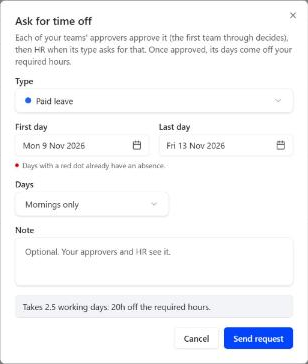
Choose Ask for time off, then:
- Type: Paid leave, Sick leave, Unpaid leave, or whatever types your site has.
- First day and Last day. Weekends are greyed out and public holidays show in red. An absence can't start on one, but it can end on one (Friday to Sunday, say). Days you already took show a bar in that absence type's colour, solid once approved, dashed while it waits for approval. A legend under the dates says what each mark means.
- Days: whole days, where the first can start at noon and the last can end at noon; or Mornings only or Afternoons only, for every day of the range. For a single day, pick the whole day, the morning or the afternoon.
- Note: optional. Your approvers and HR see it.
- Supporting document: only for a type that asks for one, such as a medical certificate for Sick leave. See Supporting documents.
Before you send it, the form says how many working days it takes and how many hours come off your required hours, and which days in the range don't count: weekend days and public holidays. When some of the days are already taken, approved or waiting for approval, it names the absence they belong to, and the request can't be sent: choose dates around them. A morning off and an afternoon off can share a day, even of two types. The form also warns when the days fall in a timesheet you've already submitted.
While you pick the first or last day, the calendar shows the range between them, and hovering a day shows the range it would make.
For a type with an allowance plan, the form shows under the type how many days you can still ask for, and says how many you have for these dates and how many will be left after. The days you'll earn until then count, and so do your other requests, approved or waiting. When you don't have enough, depending on the type, the request can't be sent and the form says how many days you're short, or it says your balance will go negative and you can still send it.
Days off can be asked for this year, from 1 October of last year, and up to 31 March of next year. Days already gone can still be asked for (a sick day once you're back, say), with a note that the dates are in the past; whoever approves it sees that you asked after the first day.
When the days run into a new leave year, or are all in one, an amber note says each day comes off the year it falls in: how many come off this year and how many off the next, and what you'll have on the new year's first day (carried over, and given for the new year). On a plan that gives each month's days at its end, it says when the first days of the new year come. If your other requests in that year already need some of those days, it says how many, so the days you have for these dates add up.
Supporting documents
Some types ask for a document, such as a medical certificate. The form shows a Supporting document box, marked required or optional.
- Drop a PDF or a photo on the box, paste one, or choose browse. Up to 3 files of 5 MB each: PDF, JPG, PNG or WebP. Each one uploads straight away, with its progress; X removes it.
- A photo shows as a small picture beside its name. Click it, or the name, to see it larger as it will be sent, before you send your request.
- A photo is redrawn by your browser before it is sent, which removes what the camera stored in it, such as where it was taken. A PDF is sent as it is.
- LogQuill checks every file. It refuses a file that isn't what its name says, a PDF protected with a password, and a PDF with scripts, attachments or forms in it. Print such a PDF to a new PDF, or take a photo of the paper.
- Required doesn't stop you from asking: the certificate often comes after the first day off. Your absence shows Supporting document missing, and nobody can approve it until you add the document with Add a document on it in My absences. A dot on Absences reminds you.
- You can remove a document until your absence is decided. After that it stays, as the record.
Screenshot to add: public/screenshots/your-time/absences-documents.png
The Ask for time off form for Sick leave, with the Supporting document box and a PDF uploaded below it.
Open Absences, choose Ask for time off, pick Sick leave for one day, and drop a PDF certificate on the Supporting document box. Capture the form once the file shows its check mark.
Documents are health data. Only you, whoever approves the absence while it is their turn, and HR (people with Approve absences, and the HR addresses through their email link) can open them. Others who may see the absence's type see how many documents it has, not the documents. Every opening is recorded in the audit log, with who opened it. Documents are stored encrypted and deleted a year after the absence ends (the absence itself stays), at once if the app is uninstalled, and when your Atlassian account is closed.
Who approves it
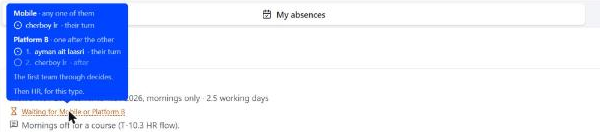
- Each of your teams, through its chain. Your admin sets it once per kind of team (its team type), with a default for the rest: your team's leader, people by name, or both, approving one after the other or any one of them. A team can also have its own, shown on the team's page. Without any, your team's leader approves. When you're in several teams, each team's chain runs at once, and the first team through decides. Nobody approves their own absence: if you're in your team's chain, your step is skipped.
- Then HR, when the type asks for it: people with Approve absences, or the HR email addresses your admin set, which approve from a link without a Jira account. If nobody else in your teams can approve, your absence goes straight to HR.
- A type that needs no approval is approved as soon as you send it, and HR is told.
Each pending absence says which teams it's waiting for (the first few, and how many others). Hover that line to see each chain: who approved, whose turn it is, and who comes after. Teams with the same approvers share one chain, so someone in many teams led by the same people sees a few chains, not one per team. You're emailed when it's approved or rejected, with the last approver's note for you.
Approvers are emailed when it's their turn, with your note and the previous approver's. HR's email addresses get one email between them, with a link to approve or reject from: it works once, for two weeks, and stops working for the others as soon as one of them decides.
Absences from Odoo or your calendar
- Odoo: if your company keeps time off in Odoo Time Off, ask for it there. It shows in LogQuill within the hour, marked From Odoo, and is decided and cancelled in Odoo: a refusal there shows as Refused in Odoo, a cancellation as Cancelled in Odoo. Ask for time off is then off for you in LogQuill.
- Your calendar: if your admin allows it, you can turn the Out of office events of your connected calendar into absences, in Integrations. Depending on your site, they count at once or go to your approvers. Moved or deleted in your calendar, the absence follows. Only their dates are read, never their title. When your time off is kept in Odoo, this isn't offered: your leave comes from Odoo only, so it can't count twice.
Your absences in your calendar
In Integrations, tick Add my approved absences to this calendar under a connected calendar. The first time, Google or Microsoft asks you to let LogQuill add events: allow it in the tab that opens. From then on, each approved absence shows in that calendar as an Out of office event, named only that: the type of absence (sick leave, say) stays in LogQuill.
- Whole days are added as all-day events in Outlook, so they fall on the same dates whatever zone your calendar is shown in. Google doesn't allow all-day Out of office events, so there they run from midnight to midnight in your calendar's own time zone, which keeps them on their dates too.
- A half day at either end of an absence is its own event, starting or ending at 13:00. An absence of mornings or afternoons is one event a day: 9:00 to 13:00, or 13:00 to 17:00.
- Moved, ended early or cancelled in LogQuill, the event follows within the hour, usually at once.
- Only absences from now on are added, not past ones.
- On Google, Out of office events need a Google Workspace account. With a personal Gmail account, LogQuill adds a busy event of the same name instead.
- Untick it, or disconnect the calendar, and the events still to come are removed. Past ones stay.
- An absence that came from that calendar's own Out of office events isn't added to it again.
- The events LogQuill adds are marked as LogQuill's, so they never come back in as new absences, even when the same calendar is connected on another Jira site.
My absences
Your requests lists all of yours as cards, 25 at a time with Show more, the latest dates first. Filter them by status, type and days, and sort them by their dates or by when you asked. Status and Type take any number of values, ticked in their lists; All statuses and All types at the top tick or untick every one. Cancelled absences are left out at first: tick Cancelled to see them. History works the same way. The days filter has This month, Last month, This year and Last year on its left, and Any days to go back to every absence. Each card shows the type, dates, working days, status, who it waits for, documents and notes, with its buttons at the bottom. Click a card to open it:
- Approval: where it stands, step by step. You asked, each approver of each of your teams (ticked once they approved, now next to whoever's turn it is, the rest still to come), HR when the type asks for it, then the outcome. Once decided, who decided and when.
- Notes and documents, in full.
- What happened: its history, who asked, who approved it in which team, with their notes, and who cancelled it, and when.
- The same buttons as the card.
Your balances
At the top of My absences, a card for each type with an allowance plan:
- a ring with the days you can still ask for this year, out of the year's days and those carried in, with your approved and pending absences of this year already counted. Its lighter part is the carried-over days still left, used first; hover it for how many come from each year. The other part is this year's own days; hover it for how many are earned so far and still to earn. Below zero, it says how many days you're short, and whether the type still lets you ask;
- when your absences in a later year need more days than that year will give, a warning says so. An absence uses the days of the year it falls in, not of the year you asked for it;
- Approved, Pending and Rejected: how many requests and days, this year and later. A click shows only those absences of that type in the list below (click again to show all);
- beside the ring, the type and the plan year, then this year so far: when it started, earned, still to earn (on a monthly plan), carried over and taken;
- the days carried over, used before this year's own, with a small ring per year they came from: how many are left of them, and how many will be lost on their date if you don't use them. Days carried from two earlier years each keep their own date;
- when the year resets, and what happens then to the days you'll have left: carried over, lost, or some of each, counting the days you'll still earn by then. Days about to be lost within a month get an Expires soon badge.
If your plan says so, you also get an email some weeks before days would be lost.
Your menu (your picture at the bottom of the sidebar) shows the same days you can still ask for, one line per type; click it to open Absences.
Screenshot to add: public/screenshots/your-time/absences-balances.png
My absences with a Paid leave balance card: days you can still ask for this year, the Approved, Pending and Rejected tiles with requests and days, this year so far, and carried days about to be lost.
On a site where Paid leave has a plan with days carried over and lost after 3 months, as someone with an approved absence to come and one waiting, open Absences. Capture the Paid leave card above the list.
Cancel it or end it early
- Pending: Withdraw request takes it back.
- Approved, not started yet: depending on its type, Ask to cancel (its approvers decide; it still counts until they accept, and Keep absence takes the request back), Cancel absence (at once), or nothing.
- Started: the same, as Ask to end early or End early. It then ends yesterday: the days already taken stay, the rest count as usual again.
- Over: it can't be cancelled any more, by anyone.
- When you cancel or end early an approved absence on your own (its type lets you), its approvers and HR are told by email.
- HR and admins can cancel any absence at once, or end it early once it has started.
- For a type with an allowance plan, the dialog says how many days go back to the balance: all of them when it hadn't started, the days from today on when it ends early. Accepting a cancellation says the same to the approver. Balances are worked out from the absences as they stand, so a rejected, withdrawn or cancelled absence takes nothing, and nobody needs to give days back by hand.
What an absence changes
Once approved, its days come off your required hours: a full day counts for none, a half day for half. That shows on your timesheet, where its days are marked, in your reminders, on your dashboard, and in the time tracking page's summary, which says how many hours were taken off for holidays and for leave. Your days off are tinted like holidays on the time table and the board, with the absence on hover. Pending absences change nothing yet.
If the days fall in a timesheet you've already submitted, it takes the change and your reviewer sees the new hours. An approved timesheet keeps its hours until it's reopened.
Logging on an absence day depends on its type, as your admin set it:
- Allowed, with a warning: Log time and Plan time say you're away that day. You can still log or plan up to a usual day's hours.
- Not allowed: no worklogs or plans that day (Sick leave and Unpaid leave start this way).
- Counts as overtime: worklogs that day are ticked as Overtime, and the box can't be unticked. A period that is only partly on such an absence has to be logged in two parts.
A morning and an afternoon off of two types make a whole day off. Both types are named wherever the day is (the table, the board, the timesheet, the calendar). Logging is refused if either half refuses it, and ticked as overtime if either half counts as overtime.
Approve absences
To approve lists what is waiting for you, oldest first: absences and requests to cancel them, where it's your turn, your step in a team's chain or the HR step. Someone with no team approver (in no team, or in teams with no leader or named approvers) comes straight to HR, and their cards say so. HR and admins choose what to see in a menu that hangs under the To approve tab: Your turn (the default, and what the tab's count, the sidebar dot and the dashboard count) and Everything waiting, which adds the requests still with a team's approvers. Those say who they are with, and you can approve them anyway, out of turn: that settles them now and skips the rest of their chain. If you're HR and also approve for a team, two more choices take your turn apart: As team approver, where it's your step in a team's chain, and As HR, the requests at the HR step. Each shows how many wait. With several teams, a team filter (From any team) shows the requests of one team's people; type in it to find a team. Find someone by name or email, tick the types to see, pick days (with This month, This year and the others, and a reset beside them), and change the order: latest or earliest dates first, or newest or oldest requests first. A long list shows 50 at a time, with Show more below.
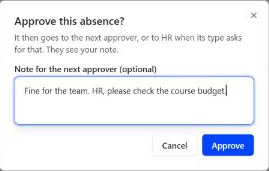
- Approve (or Accept cancelling) asks for an optional note: Note for the next approver, or, when yours is the last approval, a note for the person.
- Reject asks for a reason the person sees.
- Approve and Reject show the absence's supporting documents at the top, in green when the person added some. Each opens with a click: an image shows in the app, a PDF downloads.
- To approve one with documents, open each of them, then tick I've opened the supporting documents and checked them: the box can only be ticked once every document has been opened, and Approve waits for it. LogQuill checks this too, and the audit log keeps it with the approval. Rejecting needs no tick.
- While a required document is missing, the dialog says so and Approve waits for it; Reject still works.
- For a type with an allowance plan, Approve says how many days the person has for the absence and how many will be left after. When its days fall in a later leave year, an amber note says they come off that year's days, which aren't all there yet; one running into the next year says so too, with how many days come off each year and what the person will have on the new year's first day. A request sent after its first day says so, with the day it was asked for. The HR email page shows the same. Without enough days, depending on the type, it says in red how many are missing and Approve waits, or it says in amber that approving takes their balance negative. Their other approved absences count, not the ones still waiting.
- Reject says, for a type with an allowance plan, that rejecting frees the days it asked for: a request still waiting never took them off the balance.
- Take back approval undoes yours while nobody after you has decided, even once it went to HR.
- HR and admins approve as a step of the chain when it's their turn, like anyone. When it isn't, they can still decide with Approve anyway or Reject anyway (an approver away, say): that settles it at once, skipping the rest of the chain.
- Email HR again (the envelope) sends HR's emails and links again, for one waiting for HR whose email never arrived. Whoever approves in the app can still decide meanwhile.
History lists every absence of the people whose absences you approve, whatever became of it, by year, team and status, 100 at a time with Show more. An absence another of the person's teams approved shows here too, with the team that approved it.

The Absences to approve dashboard widget lists the same, all your teams or one, with the same buttons.
See who is away
- Calendar shows a month of absences for everyone on the site, or one team you pick: anyone may know who is away and when. What the colours mean is said above the table. Once you've moved to another month, Jump to current month brings you back. It lists the people away that month, 50 at a time with arrows to page through them; Search people finds anyone, away or not. Each half day is coloured by its type, so a morning and an afternoon of two types show both; a pending one is striped. Hover a day for each absence on it: Whole day, Morning or Afternoon, its type and where it stands.
- People on leave carry an On leave badge in the team's member list and on the team and report tables, and Soon on leave once an absence of theirs is approved ahead. Hover it for the dates.
- The Who's out this week dashboard widget lists who is away this week: your teams by default, or everyone.
Screenshot to add: public/screenshots/your-time/absences-calendar.png
The Calendar tab: a month grid with people as rows and their days off coloured by type, one day split between a morning and an afternoon.
Open Absences, then Calendar, in a month where three people have absences, one of them with a morning of Sick leave and an afternoon of Paid leave on the same day. Hover that day and capture the grid with the hint.
Who sees what
Everyone on the site can see that you're away, and when, once it is approved; a request still waiting shows only to you and those who may decide on it. The type and the notes are for you, your approvers, HR, admins and people with See absence types: sick leave is health data. Supporting documents are only for you, whoever approves it while it is their turn, and HR (see Supporting documents). The audit log keeps who asked for, approved or cancelled an absence and its days, never its type or note.