 LogQuill
Timesheet settings
How long a timesheet covers, how it's handed in, what's locked afterwards, and the emails around it.
Who: people with Timesheet settings. Open Admin, then Timesheets.
Timesheet period
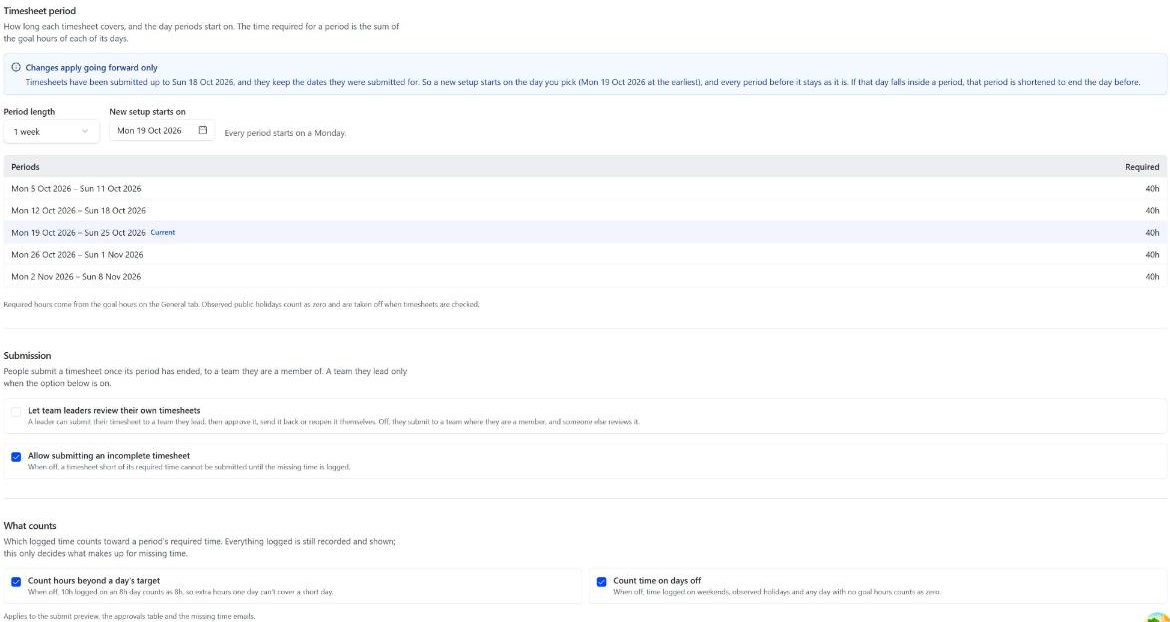
Period length: one to four weeks. Periods start on: a date, which sets the weekday every period starts on. A period's required time is the sum of its days' goal hours, minus public holidays.
Before any timesheet is handed in, you can set this to anything. After, changes apply from a date of your choice onward: timesheets already handed in keep their dates. The history of period setups is listed.
Submission
People hand in a timesheet once its period has ended, to a team they're a member of.
- Allow submitting an incomplete timesheet. When off, a timesheet short of its required time can't be handed in until the missing time is logged.
- Tolerance: a timesheet short by no more than this counts as complete. It's over the whole timesheet, not per day. The same tolerance spares people missing time emails.
- Let team leaders review their own timesheets. When on, a leader can hand their timesheet in to a team they lead, then approve it, send it back or reopen it themselves. When off, someone above them does.
After submitting
What people can still do in a period whose timesheet is handed in and waiting for review, separately for logged time and plans: Log more time, Edit logged time, Delete logged time, Add plans, Edit plans, Delete plans.
An approved timesheet is always fully locked. These locks apply in LogQuill: a worklog edited directly in Jira still changes, and the timesheet is flagged for its reviewer (Reviewing timesheets).
What counts
Which logged time makes up for what's required. Everything logged is still recorded and shown.
- Count hours beyond a day's target. When off, 10 hours logged on an 8-hour day count as 8, so one long day can't make up for a short one.
- Count time on days off. When off, time on weekends, public holidays and any day with no goal hours counts as zero.
These apply to the submit preview, the approvals table and the missing time emails.
Missing time emails
Send missing time emails to people whose logged time is short of their period's requirement. Only people on at least one team are emailed, and timesheets already handed in are never chased.
- When to send: Once, after the period, or Before and after (a heads-up before it ends, then once more after if still short), and how many days before or after, not before what hour. Times are in the site's time zone; missing time is worked out in each person's own.
- Recipients: the person always. Copy their team leaders, and Always copy up to 20 other addresses (HR, a shared inbox). If Jira hides someone's address, only the copied recipients get it.
Timesheet status emails
Sent the moment a timesheet is handed in, approved, sent back or reopened, each with its own switch: to the person, the team's leader, and whoever acted for them.
Test the emails
Send any of the app's emails (missing time, timesheet status, every absence email, or the audit log reminder) to an address you choose, filled with sample people, to check that mail goes out and what it looks like. An absence email is about a sample absence next week, and the one for HR never carries a working link to approve or reject. Its subject starts with "[Test]", and its button opens the same page as the real email's.
The list shows only the emails your site sends with its saved settings: reminders and timesheet emails that are switched on, and the absence emails your absence types can cause (approvals, HR notices, cancellations). It's written in the site's email language, sample names included.