 LogQuill
Log time
Record the time you spent on a Jira issue, on one day or every day of a period, and change it later.
Who: everyone whose role tracks time. You can only log, change or delete your own time.
A worklog in LogQuill is a worklog on the Jira issue: it appears in Jira's work log under your name, and the issue's remaining estimate goes down by the time you log.
Open Log time
- On the Time Tracking page, open Time actions, then Log time.
- In the table, select one or more days (click a day, or drag across several), then Log time.
- On the week board, use + (Add time entry) on a day.
- From the dashboard's Today widget, or by stopping a timer.
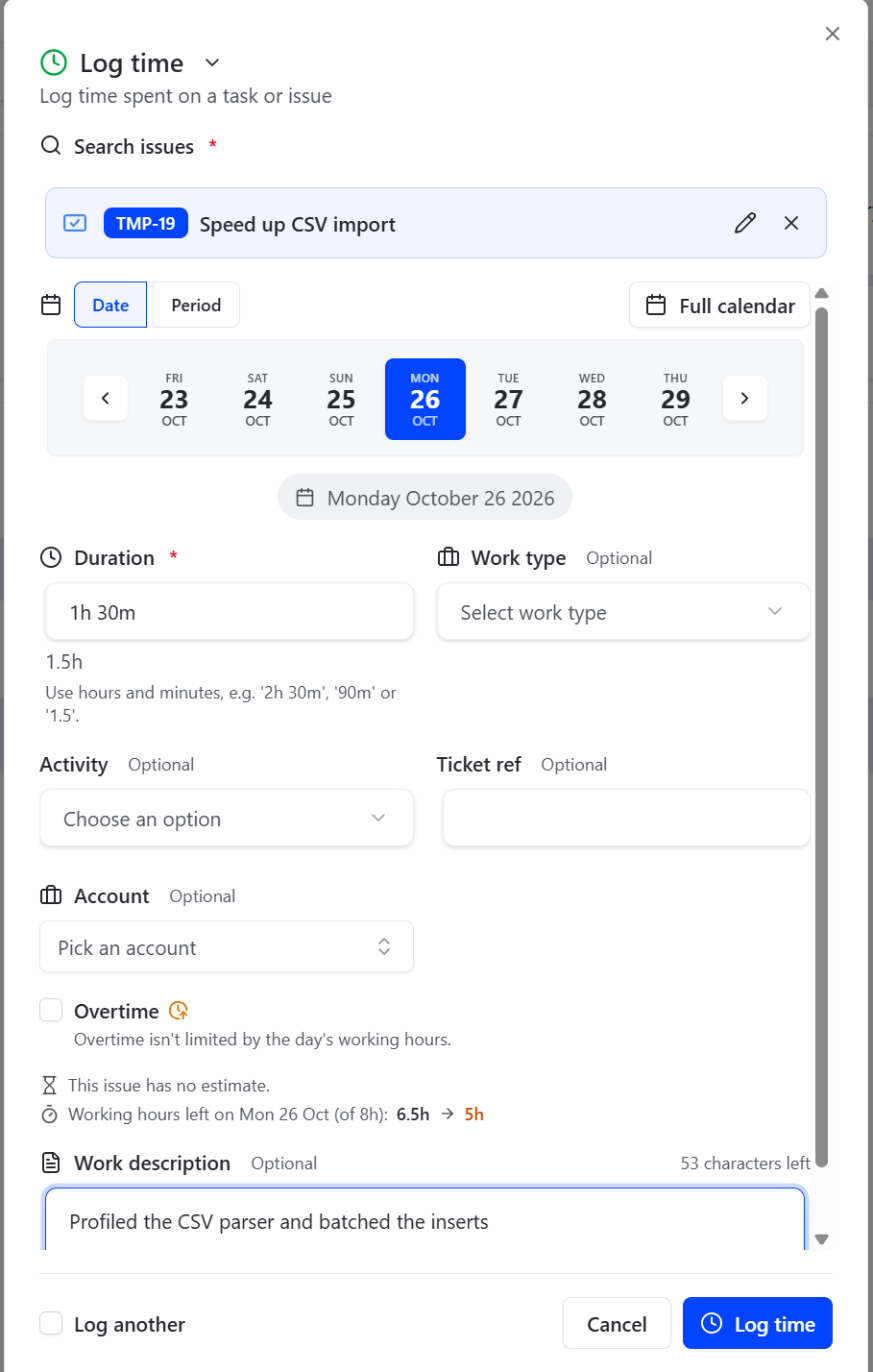
Fill it in
Pick the issue. Search by key or words in the summary. Filters narrow the search to a project, or to issues Assigned to me.
Choose the day. Date logs on one day. Period logs the same time on every day of a range, weekends included: one worklog per day.
Enter the duration. Hours and minutes, written the way you like: 2h 30m, 90m or 1.5.
At least one minute, as Jira records nothing less, and at most 24 hours a day.
Describe the work (optional), and fill in what your site asks for:
- Work type, such as development or meetings, if your site uses work types.
- Overtime, a box to tick if your site uses it.
- Any other worklog fields your site added for this issue's project.
- An account, if your site uses accounts. It is usually picked for you from where the issue sits; you can choose another one available for the issue. With an account comes Billable: by default as the account says, or untick it, or bill fewer hours than you spent.
Choose Log time, or Log another to keep the dialog open for the next one.
What the dialog tells you
- Remaining estimate: what the issue's remaining estimate becomes. Jira never lets it go below zero.
- Working hours left on the day: how much more you can log there, when your site limits a day's time to its working hours. Time ticked as Overtime isn't limited.
Why time can be refused
- The day is in a submitted or approved timesheet. Approved timesheets are locked. What you can still do in a submitted one depends on your site's settings. Ask your team leader to send it back if you need to change it.
- The day would go past its working hours, when your site limits that. Weekends and public holidays have no working hours. Tick Overtime, if your site uses it, for time that's meant to go over.
- A day has only 24 hours, whatever the settings.
- A required field is empty: a work type, an account, or another field your site requires.
- The issue was deleted or archived in Jira, or you can no longer see it. Its time can't be changed; it is marked in the table with the reason.
- Your organization's data security policy blocks LogQuill from the issue's project: the same, marked with a shield.
Change or delete a worklog
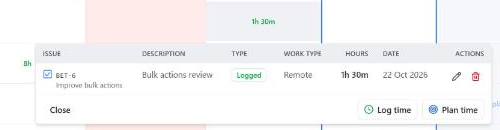
Click the cell in the table (or the entry on the week board) to see its worklogs, then edit or delete one. You can move it to another day or issue, or change its time, description and fields. The same rules apply as when logging. The issue's remaining estimate follows: moving time to another issue gives the first one its time back.
Which day your time lands on
Your time goes on the day you pick in your own time zone, the one in your Atlassian profile. LogQuill records it at the start of that working day, so Jira, your timesheet and your colleagues all see it on the same day.