 LogQuill
On Jira issues
An issue's estimate and time beside it, and its worklogs and plans with Log time, Plan time and the timer, right in the issue view.
Who: everyone who can see the issue in Jira.
LogQuill shows up in two places on a Jira issue: LogQuill time in the right-hand column, and the LogQuill worklogs panel you open from the issue's apps button.
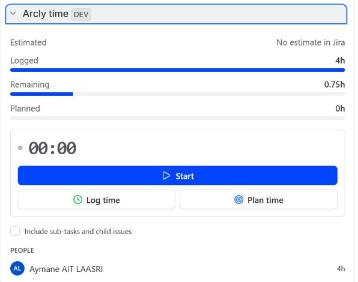
LogQuill time, beside the issue
Open any issue in Jira. In the right-hand column, LogQuill time shows:
- Estimated: Jira's original estimate, with a grey bar.
- Logged, Remaining and Planned: the time logged, Jira's remaining estimate, and the time planned on the issue. The Logged bar turns amber once more is logged than was estimated.
- Billable: the billable part of the logged time, on sites that use billable hours.
All the bars share one scale: the largest figure fills its bar and the others are drawn to size, so you can compare them at a glance. Remaining can be larger than the estimate, because time planned beyond the estimate is added to Jira's remaining estimate (how plans count).
Under the bars, one line tells how much of the estimate is taken by the time logged plus the time planned from today on: how much isn't logged or planned yet, or, in amber, how far the logged and planned time goes over the estimate. Plans for past days don't count, since that time is either logged by now or wasn't spent, and neither does what was already logged from a plan.
If someone plans time on the issue after its Due date in Jira, a second amber line says so, for example "Planned until Fri 24 Oct, after the due date (Wed 22 Oct)". Either the plan is late or the due date is out of date.
Then:
- The timer, Log time and Plan time: start the timer on this issue, or open the Log time or Plan time form with the issue filled in.
- Include sub-tasks and child issues: for an issue with sub-tasks, or an epic, counts their time in too, with Jira's estimates summed over the sub-tasks.
- Accounts: each account time on the issue was logged to, with its logged and billable time. A project can keep accounts and billable time to some people in its project settings; everyone else then doesn't see them.
- People: who logged and planned time on it, you first. You see the same people as in LogQuill's reports: yourself, your team's members if you lead a team, everyone on projects or accounts you lead, everyone on projects whose settings let you, and everyone if your role sees all time. Time by others is shown as one line.
Accounts and people are listed five at a time, with arrows to see the next ones.
Long durations are written in weeks and days, as Jira does: 1w 2d 3h. A day is your site's usual
working day and a week its weekly hours, both from the
working hours in LogQuill's settings. Hover over a duration to
see it in hours.
The LogQuill worklogs panel
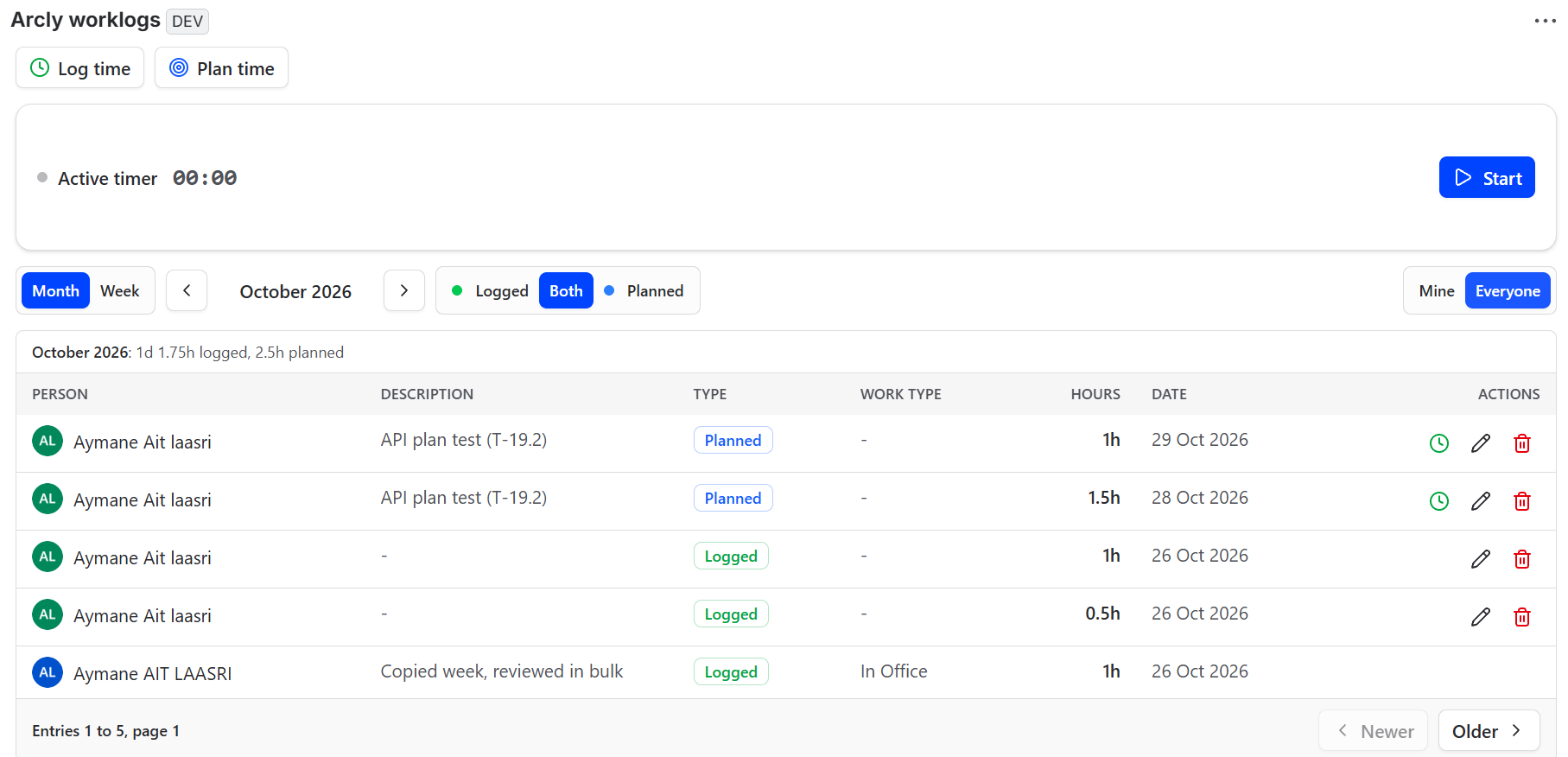
On an issue, click the apps button under the summary and pick LogQuill worklogs. The panel stays on that issue until you remove it. It shows, from the top:
- Log time and Plan time, the issue filled in.
- The timer: start it here and it runs on this issue. It is the same timer as in LogQuill time and on LogQuill's page: started in one, it shows as running in the others. Stop & log opens the Log time form with the time filled in.
- Month or Week: this month at first. Move a month or a week at a time with the arrows, and back to the current one with This month or This week.
- Mine or Everyone: your own time at first. Everyone shows everyone's time you may see, by the same rule as the People list above. You only get the switch if you can see someone else's time.
- Logged, Both or Planned: worklogs, plans, or both.
- The period's total: the time logged and planned on the issue in that month or week, all of it, not only the five entries on screen. It counts your time, or everyone's under Everyone.
- The worklogs and plans on the issue in that month or week, the newest first, five at a time. Each row has the date, the time, the description and, where they are set, the work type, account, billable time and custom fields. Under Everyone, each row starts with the person's avatar and name. Under the list, Newer and Older move through the entries, and the bar says which ones you're looking at.
You can edit and delete your own entries, with the pencil and bin on their row. Other people's entries are shown without them. On your own plans, the clock button logs that planned time: it opens Log time with the plan's day, hours and description filled in.
An entry in one of your submitted or approved timesheets shows a padlock instead of what can no longer be done on it. Hover over the padlock to see why, and what is still allowed. What a submitted timesheet still allows is set by your admin.
Log time, Plan time and edits open in a window of their own over the issue, with the same form as on LogQuill's page.
In both places
LogQuill follows Jira's light or dark theme on issues, in Jira's own colours, whatever theme you picked for LogQuill's own page. Time saved in one place shows in the other straight away.
The figures follow what is logged in LogQuill, which is the same time as in Jira. If an issue's project is blocked for LogQuill by your organization's data security policy, Jira doesn't let LogQuill read the issue.